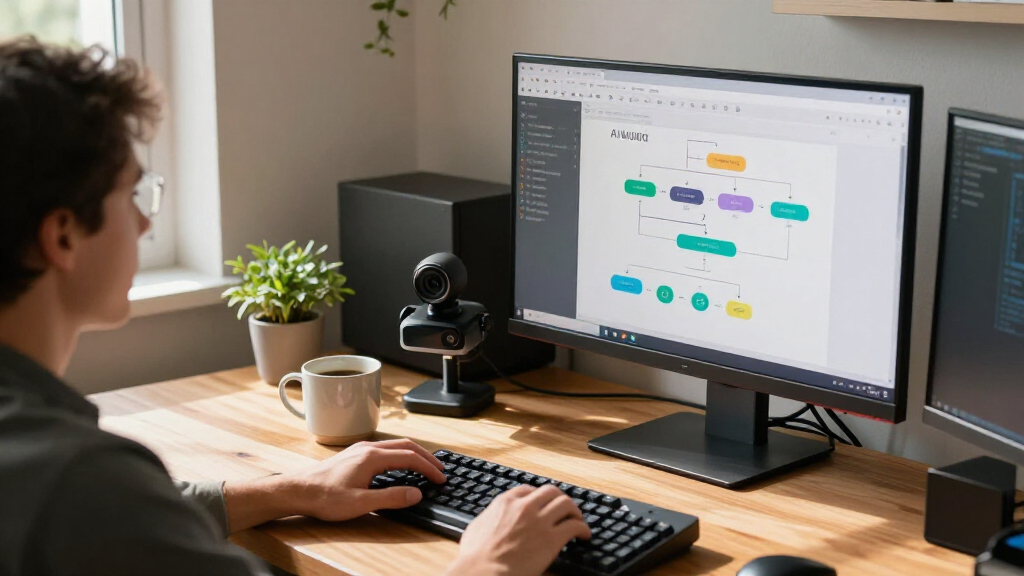

This checklist is for anyone building an AI automation desk for voice input, video calls, repeatable shortcuts, and file handling. It covers the gear that can make daily workflows easier to manage, while keeping compatibility and workspace fit in view.

Get business pricing on tech for your team
- Business-only prices and quantity discounts
- Tax-exempt purchasing
- Multiple users, one account, clear invoices
Each section focuses on one desk setup slot: its role, common buying mistakes, and practical points to check before choosing. Picks are included where provided; the webcam section is advice only, since no specific product is listed.
Use the checklist to start with your actual workflow, then confirm the connections, operating requirements, and physical fit of each item. Treat product names as starting points, and verify current specifications before buying or connecting gear.
USB Microphone
A dedicated microphone can be useful when your automation routine includes voice notes, dictation, calls, or recorded instructions. The listed pick, Shure MV7+, is a USB-C and XLR dynamic microphone sold with a stand. Its two connection types give you options to consider, but they do not automatically make it the right match for every computer or recording setup. Check which input you plan to use and whether the necessary cable or interface is part of your intended setup.
A common mistake is choosing a microphone based on its connection label alone. Confirm that your computer has a suitable USB-C connection for your workflow, or determine what additional equipment an XLR connection would require. Also check the microphone’s dimensions and the included stand against your available desk space. If you use a boom arm or other mount, verify compatibility rather than assuming the included stand answers that question. Think through placement relative to your keyboard, monitor, and usual speaking position; a microphone that crowds your work area may be inconvenient to keep ready.
Before buying, match the microphone to the tasks you actually perform and check current product specifications for connection and setup details. Ease of placement and a workable connection path matter as much as the headline feature when the goal is a dependable everyday desk setup.
What to look for:
- Confirm which connection—USB-C or XLR—fits your planned setup.
- Check whether your computer and any required accessories support that connection.
- Measure the desk area available for the included stand.
- Verify compatibility before planning to use a separate mount.
- Review current setup requirements for your intended recording or voice workflow.
Shure MV7+ USB-C & XLR Podcast Dynamic Microphone with Stand – Black

The Shure MV7+ is a versatile dynamic microphone designed for podcasting, streaming, and content creation. It features OBS certification, advanced DSP noise reduction, customizable LED touch controls, and flexible connectivity options via USB-C and XLR.
Pros:
- High-quality sound with noise reduction and voice isolation
- Flexible connectivity options for various setups
- Customizable LED touch controls and app integration
Cons:
- May be complex for beginners due to advanced features
- Requires software for full customization
- Potentially higher price point
Best for: People comparing USB-C and XLR options for a voice-focused desk
Not ideal for: Anyone who has not checked connection needs or desk clearance
Bottom line: Consider the Shure MV7+ if its connection options and stand fit your planned workflow.
Webcam
A webcam matters when your automation desk also supports video meetings, remote collaboration, or recorded demonstrations. Because this checklist has no named webcam pick, use the slot to define what you need before comparing products. Start with the applications and devices you expect to use, then check their compatibility requirements. A camera that fits the physical setup but does not work with your software or computer is not a practical choice.
One common mistake is focusing on a single specification without considering the whole call setup. Review the webcam’s connection type, mounting approach, and whether its placement works with your monitor or laptop. Check the cable path and available ports, especially if other desk devices already use them. Consider the camera’s position relative to your screen and your normal seating position; a webcam that cannot be placed securely or framed comfortably may be frustrating to use. Avoid assuming that a feature is included unless the product listing and current specifications confirm it.
For an AI automation desk, choose a webcam around the calls or recordings you actually make, not a hypothetical advanced workflow. Confirm software support, mounting fit, and any setup requirements before purchasing. Compatibility and placement are sensible first filters; compare additional capabilities only after those essentials are clear.
What to look for:
- Check compatibility with your computer and video-call applications.
- Confirm the connection type and available port requirements.
- Verify that the mounting style fits your monitor, laptop, or planned position.
- Plan cable routing alongside your other desk equipment.
- Review current product specifications for included features and setup needs.
Stream Deck
A macro pad can make recurring actions easier to access from the desk, which may help when you switch often among automation tools, apps, and routine commands. The listed pick is the VSD N4 Pro Macro Pad, described as a stream controller with LCD keys, RGB knobs, and touch. Those controls may appeal to users who want visible, directly accessible inputs, but the product name alone cannot establish how it works with a particular application or operating system.
A frequent buying mistake is assuming that a controller will support every desired shortcut or automation tool. Before choosing this model, check its current compatibility information and the software or configuration process it requires. Confirm that the LCD keys, knobs, and touch controls suit actions you will actually use; extra controls do not help if they do not map to your routine. Also measure your desk and consider where the pad will sit relative to your keyboard and mouse. Check connection requirements and whether the planned location leaves enough room for comfortable use.
Begin with a short list of repeatable actions you want to bring within reach. Then check whether the device supports that workflow and can be positioned conveniently. Useful shortcuts and a comfortable placement are better selection criteria than choosing a macro pad simply because it has several kinds of controls.
What to look for:
- Verify compatibility with your operating system and intended applications.
- Check the configuration process for the shortcuts or automation actions you need.
- Consider whether LCD keys, knobs, and touch controls suit your workflow.
- Measure the space available beside your keyboard and mouse.
- Confirm connection requirements and plan a convenient cable route.
VSD N4 Pro Macro Pad Stream Controller with LCD Keys, RGB Knobs, Touch Bar, USB
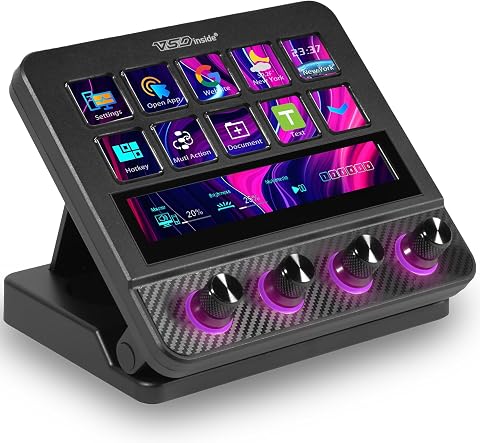
The VSD N4 Pro is a programmable stream controller featuring 10 customizable LCD keys, 4 RGB knobs, and an interactive touch bar. It supports one-tap multi-step macros without coding, functions as a USB sound deck with 500+ downloadable plugins, and includes dynamic RGB lighting, a built-in USB dock, and a foldable 60° ergonomic stand.
Pros:
- Fully customizable keys with multi-step macros and no coding required
- Functions as a USB soundboard for streaming and audio control
- Built-in USB dock adds extra ports for peripherals
- Foldable ergonomic stand for comfortable long sessions
Cons:
- No built-in speakers — only sends audio control commands
- Full features require plugin downloads
Best for: People who want frequently used commands within reach
Not ideal for: Anyone expecting unverified support for a specific app or workflow
Bottom line: Consider the VSD N4 Pro if its controls, compatibility, and desk footprint fit your routine.
USB Hub
A hub can help organize a desk where several devices need USB connections, but port count alone is not enough to choose one. The listed pick is the StarTech 10-Port Industrial USB 3.0 Hub, identified as 5Gbps, 65W PA, and TAA. Check the current product documentation to understand those specifications and determine whether they match your particular equipment. The right hub should suit both the devices you plan to connect and the way your computer handles its ports.
A common mistake is treating a hub as a universal solution for every connection or power need. Make a list of the devices you will attach and check their connector and power requirements against the hub’s documented capabilities. Confirm the upstream connection to your computer, any required power arrangement, and whether the hub’s physical form fits your desk or mounting plan. If you expect to connect high-demand equipment, do not infer support from the hub’s port count or product title; verify the relevant details in current specifications. Think about cable reach and whether the hub will sit where connections remain accessible.
For a reliable setup, choose the hub around your actual devices rather than buying extra ports without a plan. Power and compatibility deserve particular attention when multiple accessories share one connection point. Confirm the documented requirements before connecting the rest of the desk.
What to look for:
- Count your devices and compare their connectors with the hub’s ports.
- Check current documentation for the upstream connection and supported data rate.
- Verify power requirements for the hub and connected devices.
- Measure the intended location and check cable reach.
- Confirm that the hub’s documented capabilities match your planned equipment.
StarTech 10-Port Industrial USB 3.0 Hub 5Gbps, 65W PA, TAA

This rugged industrial USB 3.0 hub features a metal housing, surge protection, and ESD protection, making it suitable for harsh environments. It offers flexible mounting options and supports various power sources, providing up to 50W to power multiple devices simultaneously.
Pros:
- Durable metal housing suitable for industrial environments
- Flexible mounting options including DIN rail
- Supports high power output for multiple devices
Cons:
- No mention of wireless connectivity
- Requires external power supply
- Limited to USB 3.0 devices
Best for: People connecting several compatible USB devices at one desk
Not ideal for: Anyone who needs unverified power or device support
Bottom line: Consider the StarTech hub only after matching its documented connections and power details to your devices.
Noise-Canceling Headphones
Headphones can support focused work, calls, or listening without relying on desk speakers. The listed pick is the Bose QuietComfort Wireless Noise Cancelling Headphones in black. Before choosing them, consider how you intend to connect and use them throughout your workday. Check current product information for device compatibility, control behavior, and the operating details relevant to your listening habits rather than assuming every feature suits every setup.
A common mistake is treating noise cancellation as a complete answer to every work environment. Consider whether you need headphones primarily for concentration, calls, or both, and verify that their documented functions match those needs. Check how they connect to your computer and other devices, and whether that connection suits the way you move between them. Fit is personal, so look for product details that help you assess the design and consider trying them if that option is available to you. Also think about where you will store them and whether their controls are convenient for your routine.
Choose headphones based on the situations in which you will actually use them. Connection, comfort, and controls are practical checkpoints alongside the noise-canceling feature in the product name. Confirm current specifications and fit considerations before making them part of an everyday desk setup.
What to look for:
- Confirm compatibility with your computer and other intended devices.
- Check documented wireless connection and control details.
- Consider whether your main use is focus, calls, or both.
- Review fit and design information for your comfort preferences.
- Plan a convenient place to store the headphones between sessions.
Bose QuietComfort Wireless Noise Cancelling Headphones, Black

Over-ear wireless Bluetooth headphones featuring active noise cancellation with Quiet and Aware listening modes. Offers high-fidelity audio with adjustable EQ, up to 24 hours of battery life, USB-C fast charging, and multipoint device connectivity.
Pros:
- Effective active noise cancellation with two listening modes
- Long 24-hour battery life with quick USB-C charging
- Multipoint Bluetooth for easy switching between devices
- Comfortable plush ear cushions for long sessions
Cons:
- Full feature set requires the Bose app
- EQ is app-controlled rather than on-device
Best for: People seeking wireless noise-canceling headphones for desk use
Not ideal for: Anyone who has not checked connection needs or personal fit
Bottom line: Consider the Bose QuietComfort headphones if their fit and documented connections suit your routine.
Portable SSD
A portable SSD can be useful when your desk workflow involves moving or keeping files on external storage. The listed pick is the Samsung T9 Portable SSD 4TB, with USB 3.2 Gen 2×2 in its supplied product name. Before choosing it, check the current specifications and confirm that your computer supports the connection you intend to use. A product’s connection label does not guarantee that every host will provide the same compatibility or performance.
A common mistake is buying storage without checking the file workflow around it. Consider what you plan to store, how you will connect the drive, and which devices need access. Verify port compatibility, cable requirements, and any operating-system or formatting considerations relevant to your computers. Check the drive’s physical size and where you will keep it on the desk or while transporting it. If you expect to use it with more than one device, confirm that your file and connection requirements work across those devices before relying on the drive as part of your routine.
Use your actual storage and transfer needs to guide the decision, then verify current product details rather than relying on the title alone. Host compatibility and a clear file-handling plan make an external drive easier to integrate into an automation setup. Keep important files managed according to your own backup needs instead of assuming one drive covers every contingency.
What to look for:
- Confirm that your computer supports the drive’s intended connection.
- Check cable requirements and compatibility with each device you plan to use.
- Review current specifications for operating-system and formatting considerations.
- Consider where the drive will sit and how you will transport it.
- Plan how the drive fits into your existing file-management and backup routine.
Samsung T9 Portable SSD 4TB, USB 3.2 Gen 2×2 External Solid State Drive
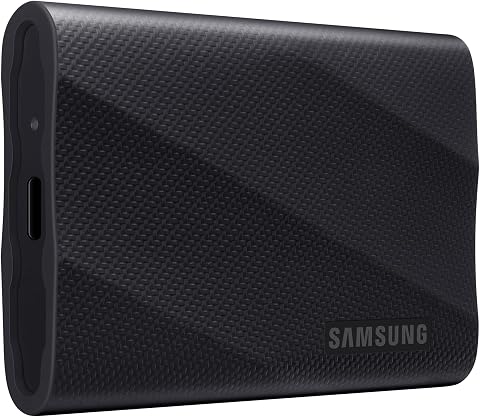
The Samsung T9 is a 4TB portable solid state drive with read and write speeds of up to 2,000MB/s and thermal management for sustained use. It works with desktops, cameras, gaming consoles, and iPhone 15 Pro for ProRes 4K video recording, and supports drive monitoring, firmware updates, and encryption through Magician Software.
Pros:
- High read and write speeds of up to 2,000MB/s
- Thermal management designed for sustained workloads
- Broad device compatibility, including iPhone 15 Pro
- Magician Software offers firmware updates, encryption, and drive health monitoring
Cons:
- Maximum speeds may depend on the connected device and workload
- The included SSD cable is recommended for iPhone video recording
Best for: People who need portable storage for a computer-based workflow
Not ideal for: Anyone who has not confirmed host and cable compatibility
Bottom line: Consider the Samsung T9 after verifying its connection and file-workflow fit with your devices.
Build the setup in a practical order: first identify the devices and connections your workflow requires, then prioritize items that address a clear daily need. Check the microphone and webcam against your calls or recording habits, confirm whether a macro pad adds useful shortcuts, and match the hub to your actual port and power requirements. Add headphones and external storage after verifying fit, compatibility, and how you plan to use them. This needs-first order helps prevent buying gear that does not fit the rest of the desk.
You do not need to add every category at once. Start with the most important friction point, confirm product details with current documentation, and expand only when a new need becomes clear. A thoughtful desk setup is one that fits your tools, space, and routine. Use this checklist as a practical starting point, and adjust it as your automation workflow changes.
Fall Picks
fall essentials
As an affiliate, we earn on qualifying purchases.